
LTE-M Panic Buttons:
Panic Buttons Battery Replacement Procedure
From time to time, the panic buttons will need to have their batteries replaced. Rather than needing to coordinate continuously with Envysion Technical Support over the phone to adjust settings and prevent false alarms, you can now perform this process entirely self-service through the Envysion Safety & Security workspace.
Required Tools & Materials
Before you begin, ensure you have the following ready:
- Phillips Screwdriver – PH#000 (1.5 mm diameter)
- Non-rechargeable alkaline AA batteries – Two (2) per button (Energizer or Duracell recommended)
Step-by-Step Battery Replacement & Testing Process
Step 1: Navigate to Alarm Events & Select Your Site
- Log in to the Envysion platform and navigate to the Safety & Security workspace from your dashboard.
- Click on Alarm Events on the left-hand navigation bar.
- Select the specific site where the panic button batteries need to be replaced, either by selecting it from the list or using the search box.
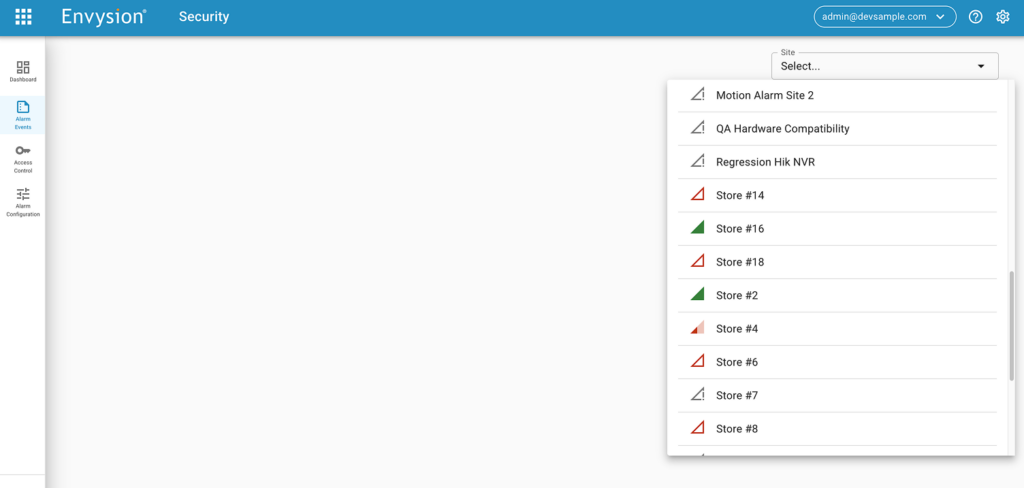
Step 2: Access Panic Button Maintenance
- Once the site landing page loads, locate and click the PANIC BUTTONS MAINTENANCE button on the right side of the page (1).
- A modal window will open, presenting two choices: Test Buttons and Replace Batteries (2).
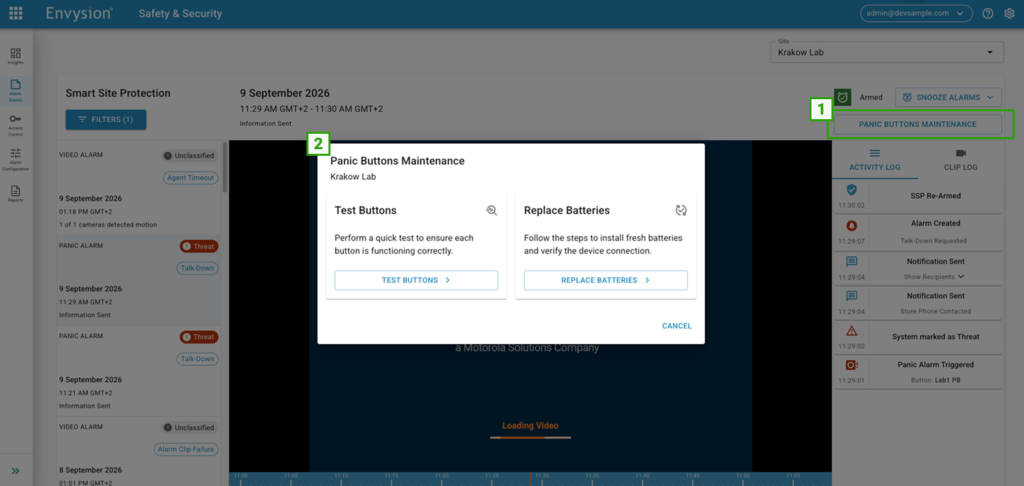
Step 3: Enable Battery Replacement Mode
- Click REPLACE BATTERIES > to open the informational screen.
- Note the system warning: Panic buttons will be set to Battery Replacement Mode for 30 minutes, during which they will not emit real panic alarms.
- Check the box confirming: “I have read the instructions and want to proceed with the battery replacement”.
- Click START REPLACEMENT.
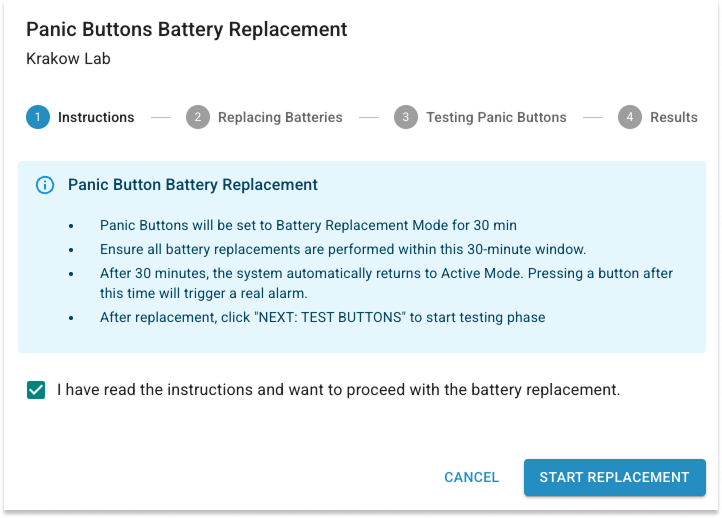
Step 4: Physically Replace the Batteries
- A 30-minute countdown timer will appear on the screen, indicating how much time remains in Battery Replacement Mode. (Note: If the browser is accidentally closed or refreshed during this window, you can retrieve and resume the session, by clicking the “Panic Buttons Maintenance” button again)
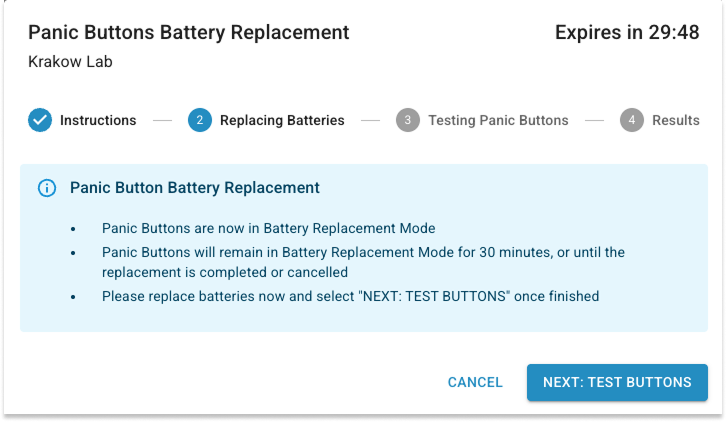
- Go to the physical location of each panic button.
- Remove the button from its mounting surface (it may be adhered with Velcro, double-sided tape, or a bracket).
- Use your Phillips screwdriver (PH#000, 1.5mm diameter) to remove the rear cover.
- Remove the old batteries and insert two (2) brand-new non-rechargeable alkaline AA batteries (Energizer or Duracell recommended).
- Securely tighten the rear cover back on and re-mount the button.
- Once all physical replacements are complete, return to your screen and click NEXT: TEST BUTTONS.
Step 5: Test the Panic Buttons
- Clicking “NEXT: TEST BUTTONS” initiates a 15-minute test session.
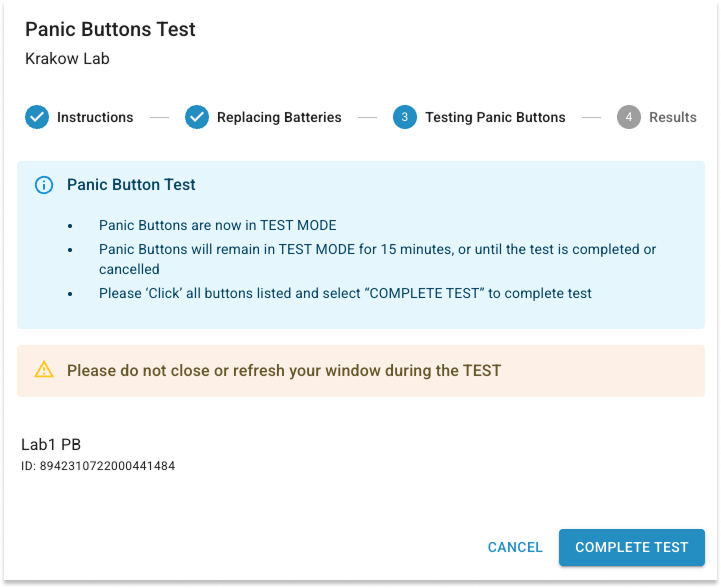
- Walk to each assigned button at the site and click/press it.
- The system will actively listen for the wireless signals to verify that each device is communicating correctly.
- Do not close or refresh your browser window during this testing phase.
Step 6: Complete the Test & Wait for Network Processing
- After clicking all physical buttons, return to the screen and click COMPLETE TEST.
- Important: The system will wait 30 seconds after clicking “COMPLETE TEST” to allow all signals to reach the network. This prevents any delayed test signals from being misidentified as real active panic alarms once the system exits test mode.
Step 7: Review Test Results & Report Issues
- Once the 30-second delay ends, the screen will display the test results.
- A Green “Passed” message indicates that the signals were successfully received and verified.
- A Red “Failed” message indicates that no signal was intercepted for a specific button.
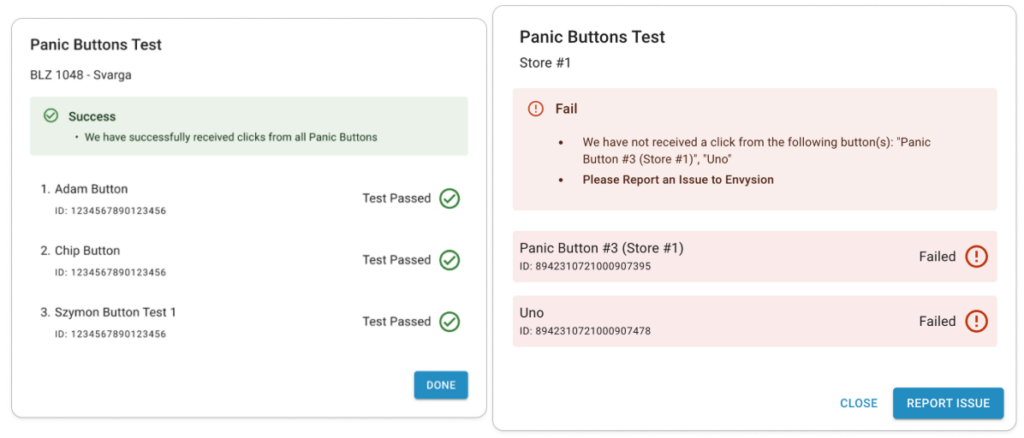
- If any button fails the test, click REPORT ISSUE to open the standard issue reporting window and submit details directly to the service desk team.
- Click CLOSE to return the system back to Active Mode. Warning: Any button press after exiting this screen will activate a live, real alarm and dispatch first responders.
Refer to the Panic Button battery replacement tutorial for step by step instructions.
Reach out to Envysion Technical Support if you require further assistance.
Was this post helpful?
Let us know if you liked the post. That’s the only way we can improve.