
Envysion Local:
Logging into Envysion Local
Logging in Via URL Address
If you are having issue with the Local Login link on the EnVR or Site page in Salesforce, use the following to manually access Envysion Local.
- https://(MAC-Address).appliance.envysion.com/local/ (Insert the MAC address for (MAC) in your web browser)
- Example: https://7c-05-07-3c-32-41.appliance.envysion.com/local/
Once you click on it, you will be in the customer’s Envysion Local for that EnVR. If you are seeing the login screen, make sure you are logged in as your Envysion user or the correct domain in the web app.
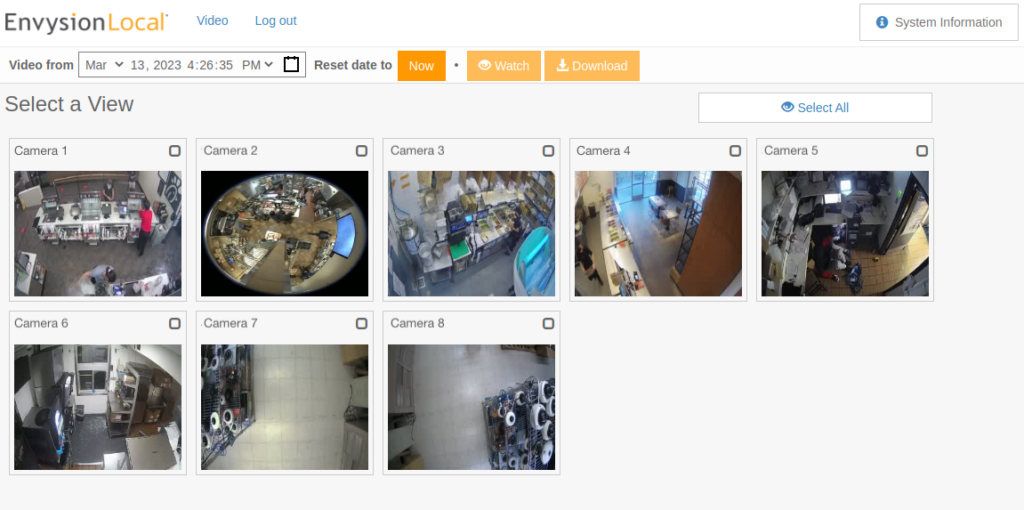
Accessing Local from the EnVR
- On the keyboard, hold the Alt key, press the tab key, then release all keys. Their display should switch from the live view to the Login Screen.
- Each location will need to be provided their own login.
- If the site is allowed to have access, log into local and create an account. Use the standard login credentials (see page “Create a new user”
- If your location does not seem to have access to Envysion Local, please reach out to your CSM.
- To go back to the camera view, hold the Alt key, press the tab key, then release all keys.
Accessing Local from the BOH Computer
Your computer must be on the same network as the EnVR. You can access Local by entering the following URL with your EnVR’s MAC address in the URL browser:
- https://(MAC-ADDRESS)-local.appliance.envysion.com
Was this post helpful?
Let us know if you liked the post. That’s the only way we can improve.