
Envysion Local:
Downloading Clips from Envysion Local
To download a clip of recorded video:
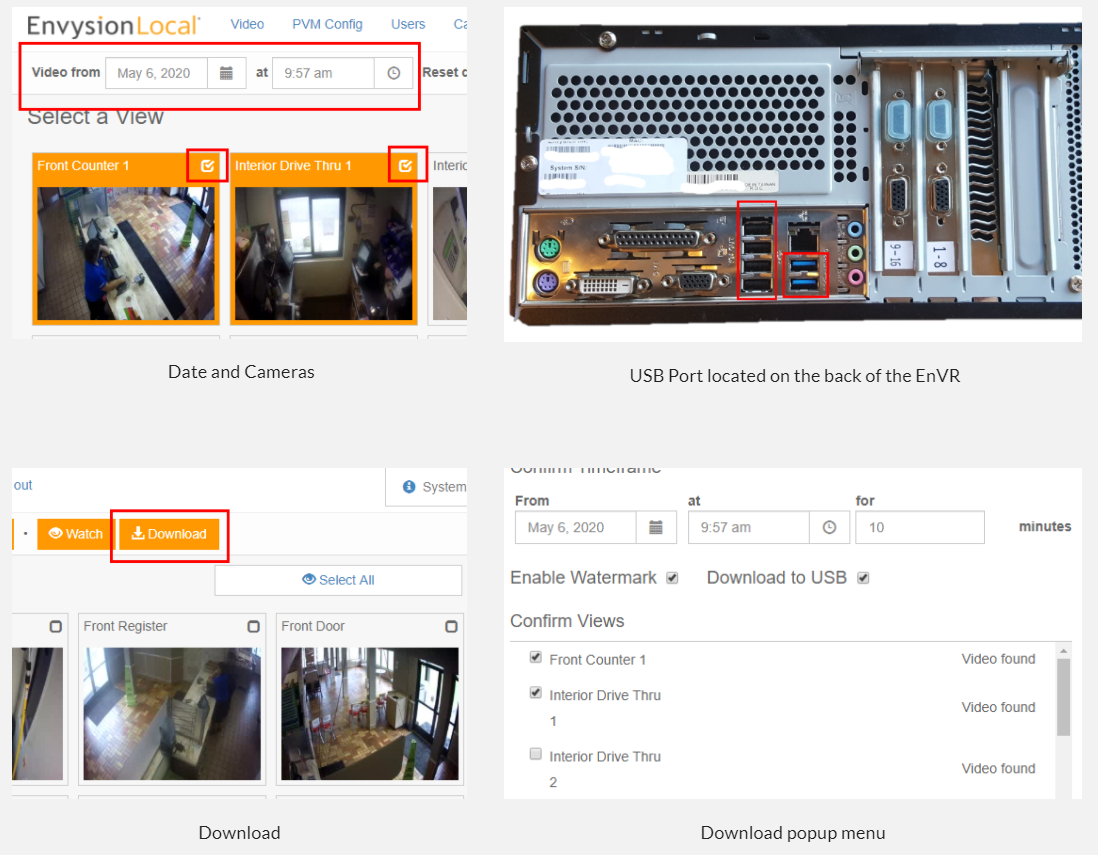
- Set the date and camera view(s) as in the previous section.
- Insert a USB storage drive into an available USB port on the back of EnVR.
- Click the Download button. The clips for the Individual cameras will be made available for download.
- On the Download popup menu, mark the Enable Watermark and Download to USB (should already be marked) checkbox. The Enable Watermark feature will create a text overlay on each clip that denotes the date, time, EnVR, and Camera name. The Confirm Views list shows available video during the selected timeframe. It is possible that no video will show if there was no motion detected OR if the camera was offline during the selected timeframe.
- Click the Download button and the clip(s) will download to your USB drive. Once complete, you will be prompted to remove the USB Drive from the EnVR.
Was this post helpful?
Let us know if you liked the post. That’s the only way we can improve.