Halo Smart Sensors Integration:
How to Review HALO Sensor Events
Once your sensors are mapped and notifications are active, you can perform deep-dive reviews of all triggered events through the Sensor Events Report. This guide explains how to locate and analyze this data.
Step 1: Access the Sensor Events Report
-
Log in to the Envysion web application.
-
Navigate to the Safety and Security pillar icon in the main navigation bar.
-
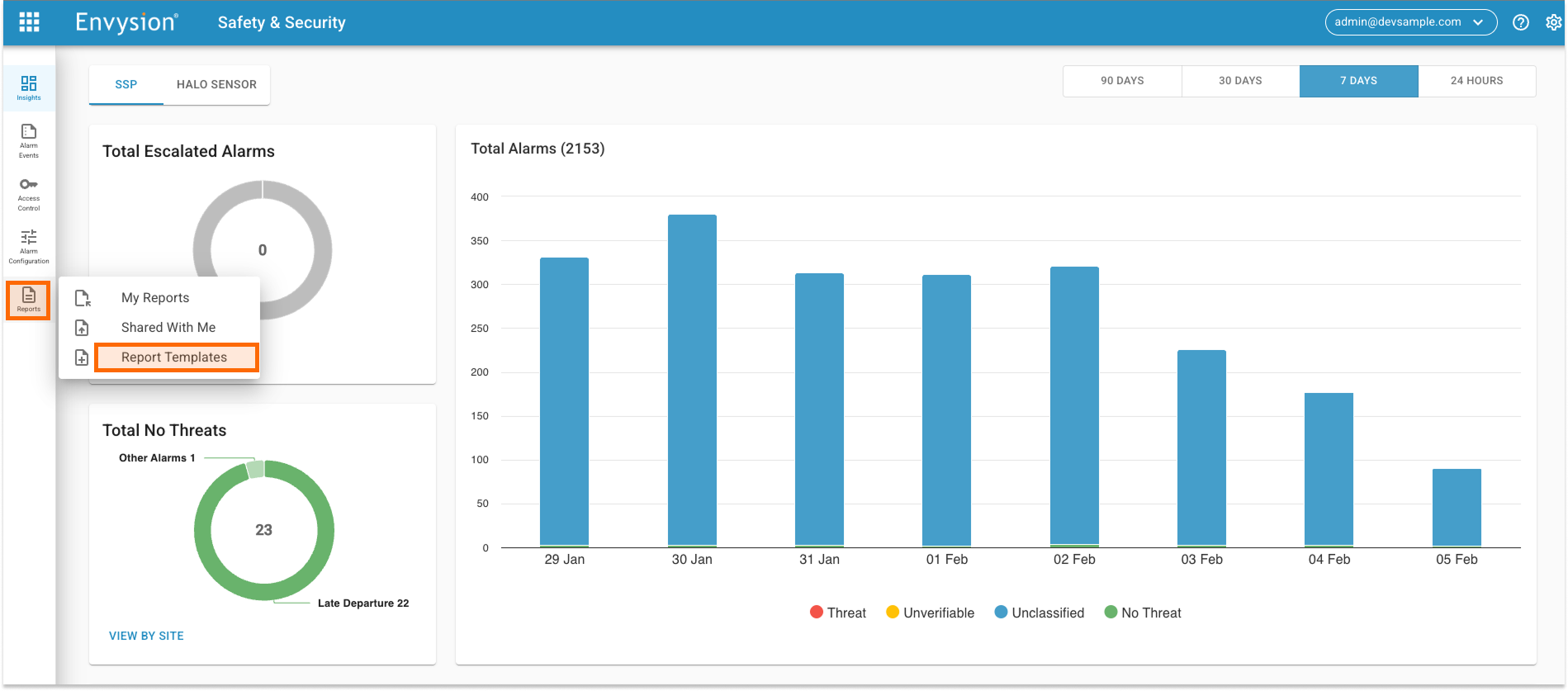
On the left-hand navigation bar, click Reports.
-
From the sub-menu that appears, select Report Templates.
Step 2: Selecting the Sensor Events Template
-
Locate the template titled Sensor Events and click it.
-
You will land on a summary page showing a list of sites you have access to, along with the Event Count for each site.
-
Note: The list only shows sites that have generated at least one event within the selected date range. If a site is missing, it likely had no triggers during that period.
Step 3: Adjusting the Date Range
By default, the report shows events from the last 24 hours.
-
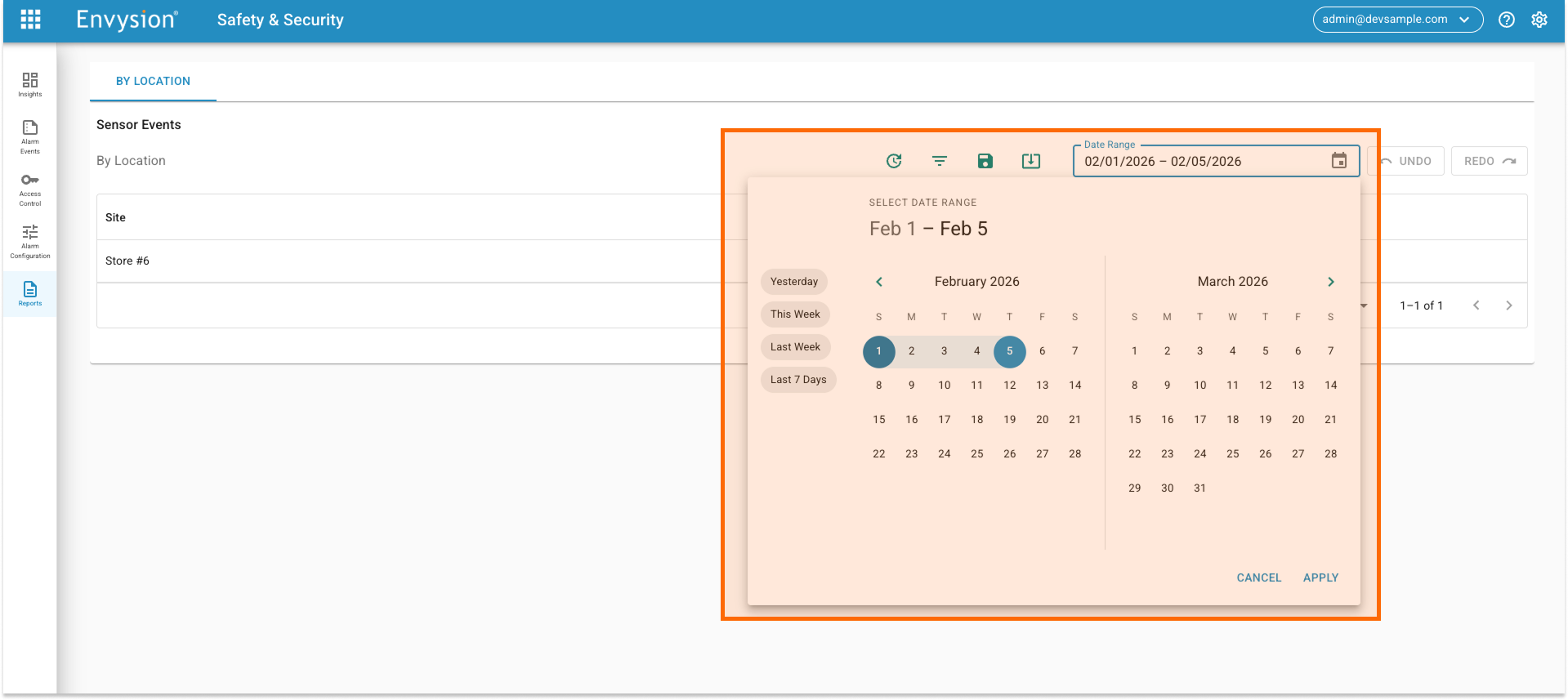
To change this, click the Calendar Icon in the top right.
-
Select a Preset Range (e.g., Last 7 Days) or use the Calendar to select a custom start and end date.
-
Click Apply to refresh the site list.
Step 4: Analyzing Event Details
-
Click on the Site Name you wish to investigate.
-
A detailed list of all events for that site will appear. You will see columns for:
-
Date/Time: When the event occurred.
-
Event Type: The category (e.g., Safety).
-
Source: The specific trigger (e.g., Aggression or Vaping).
-
Sensor Name: Which specific hardware triggered the alert.
-
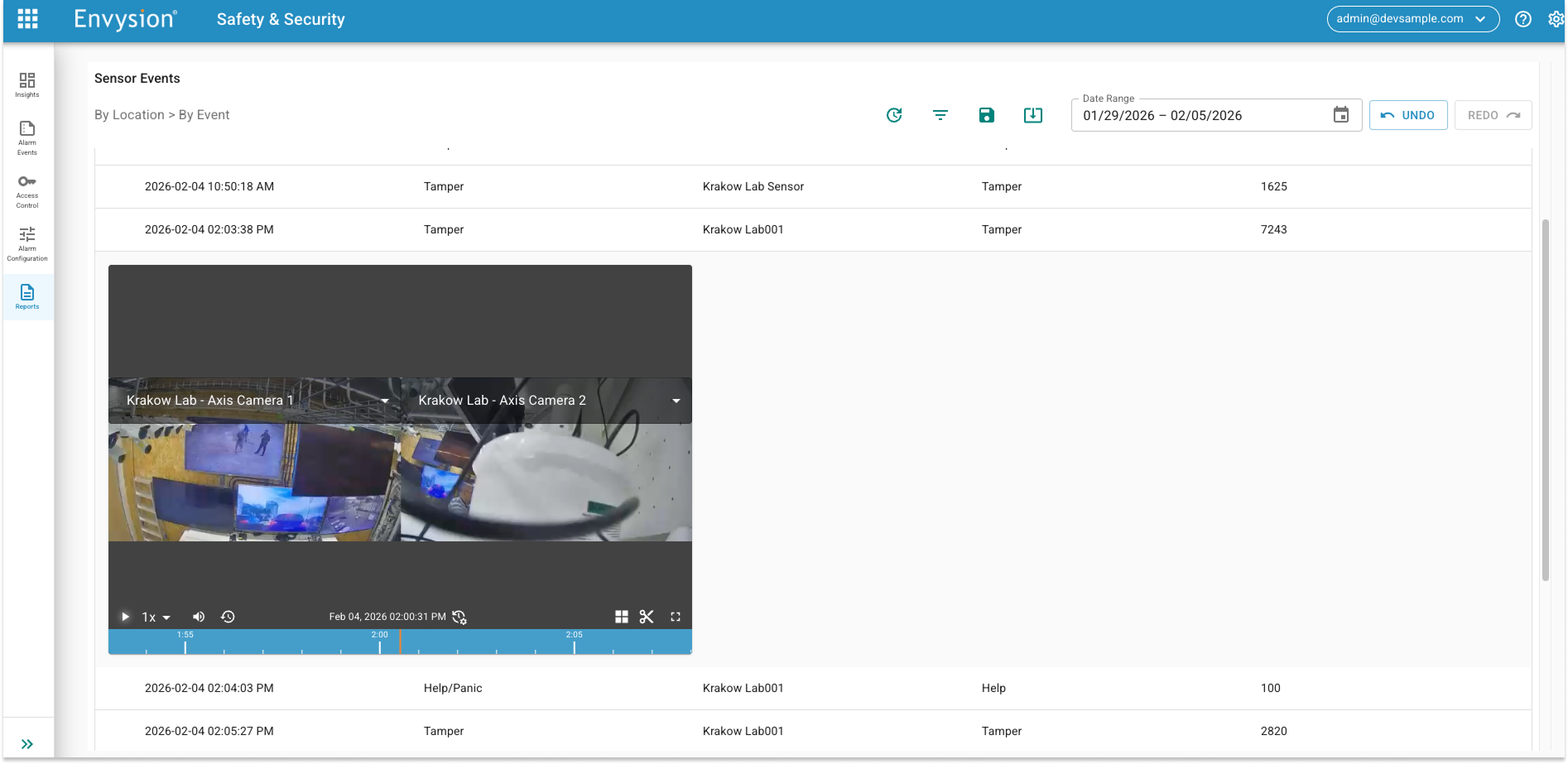
Step 5: Reviewing Video Footage
-
Click anywhere on an Event Row within the table.
-
The row will expand to reveal the integrated video player.
-
This view automatically loads the footage from the mapped cameras associated with that specific event type.