
Smart Site Protection™:
Smart Site Protection Manual Snooze
Available for SSP™ Professional Monitoring Only.
What is it?
SSP Manual Snooze is a new functionality available on both web and mobile application, that allows you to temporarily pause alarms at your site. If you know that there is planned activity performed at your site, like cleaning or remodeling, you can manually snooze the site for a predefined period of time. You can re-arm the site manually or it will re-arm automatically after the set time. Please note that this functionality is available only for SSP Admins.
How does it work?
On the web application, select the “Security” item from the workspace menu and then click on the “Alarm Events” icon from the left side menu (1):

You will have then to select your site from the list of sites in the site-picker (2):

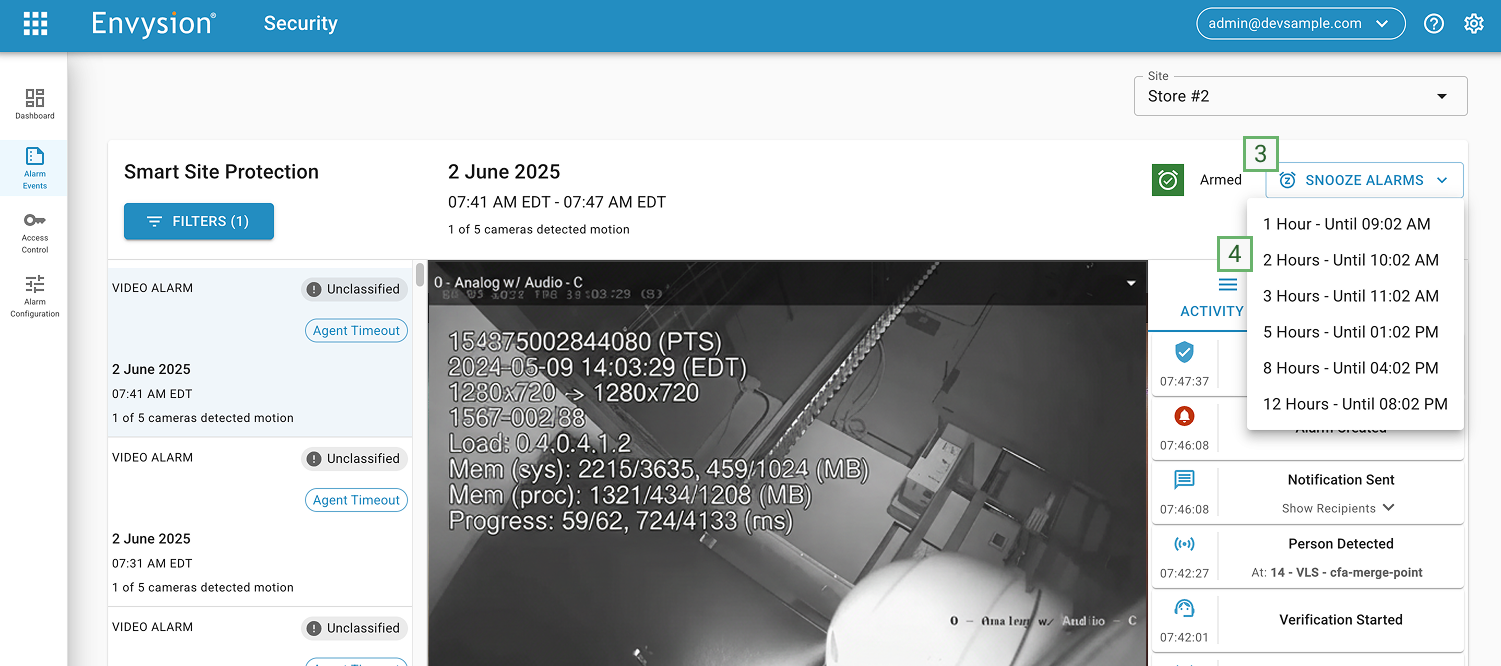
After selecting your desired site, you’ll arrive at the Alarm Events page. Here, you’ll find the SNOOZE ALARMS button (3) in the top right corner, above the Activity log. Clicking it reveals a dropdown with six preset snooze durations: 1, 2, 3, 5, 8, and 12 hours (4). The snooze period begins immediately upon your selection. Your site will automatically re-arm once the chosen time expires, or you can manually turn off the snooze at any point.
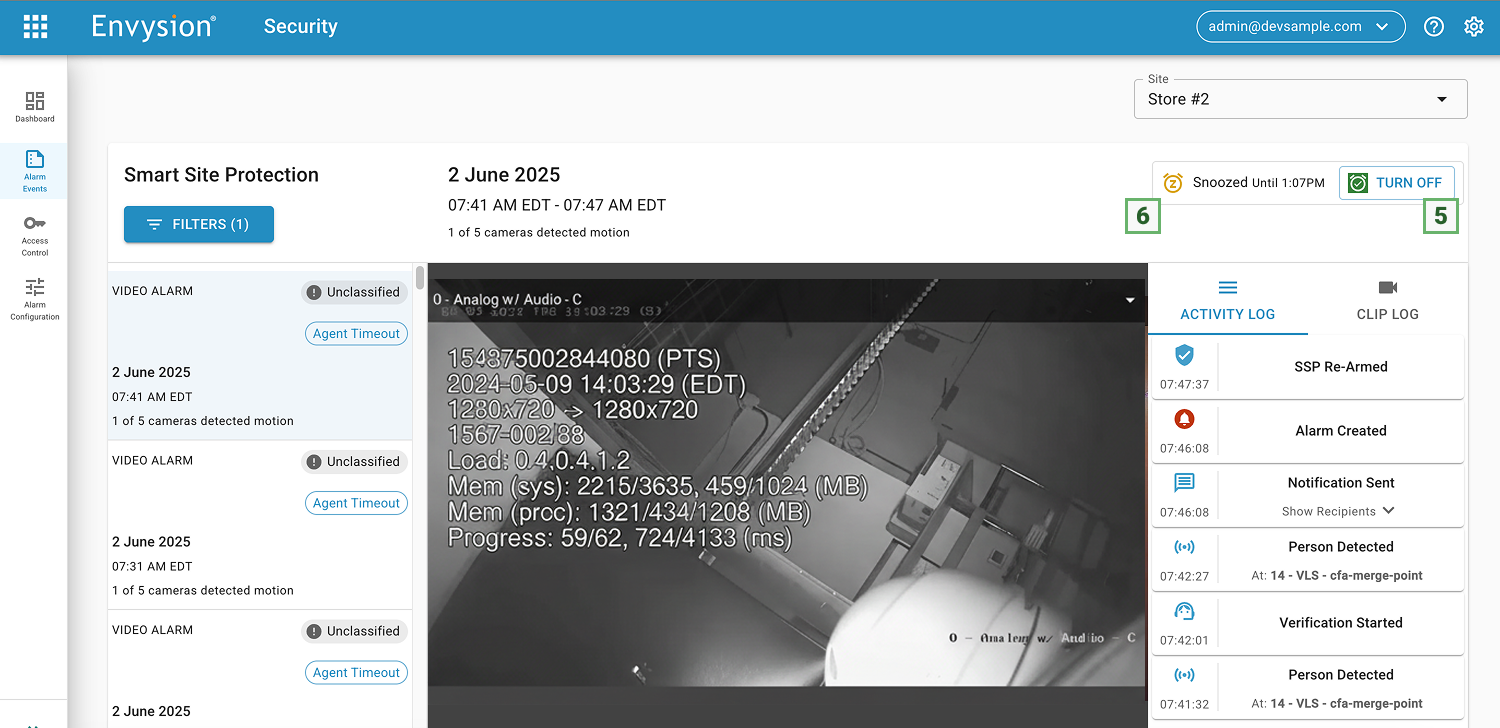
After you’ve chosen a snooze duration, the button will update to “Turn Off” (5) so that you can turn off the snooze and rearm your site anytime you need. Next to it, you’ll see the precise time SSP will automatically re-arm (6). While snoozed, the system will continue to record all motion events, but it will not generate new alarms or send notifications to monitoring agents.
Please note: Panic Alarms are never snoozed, and any panic button press will still be sent to the monitoring station.
Snoozing a site from your mobile app is similar with how you snooze it from the web app. Here’s how: First, tap the “Workspace” menu icon on the top-left corner of your screen and select “Safety & Security” (1). You will land on the Safety & Security Insights page. Now from the bottom navigation select the “Alarm Events” (2). You will have then to select your site from the list of sites in the site-picker (3) (you can also use the search bar). After selecting your desired site, you’ll arrive at the Alarm Events page. Here, you’ll find the SNOOZE ALARMS button (4) above the Activity log. Tapping it reveals a dropdown with six preset snooze durations: 1, 2, 3, 5, 8, and 12 hours (5). The snooze period begins immediately upon your selection. Your site will automatically re-arm once the chosen time expires, or you can manually turn off the snooze at any point.
