
Mobile App:
Live Video on Mobile
Accessing Video in Mobile
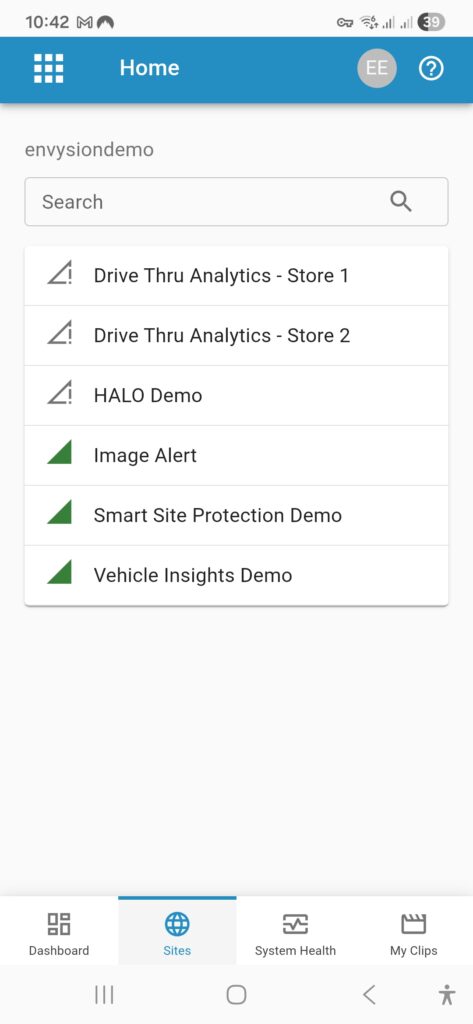
After user logs in into the mobile app, they see the Home Dashboard page.
1. First step is to click Sites button on bottom navigation to open Site organization list page.
2. On Site organization list use:
– the search at the top of the screen to quickly find the site,
– or click thru a tree structure organization hierarchy to find proper site.
When in Site first screen is the Site Cameras page.
3. To see the video tap the thumbnail for the camera you would like to view.
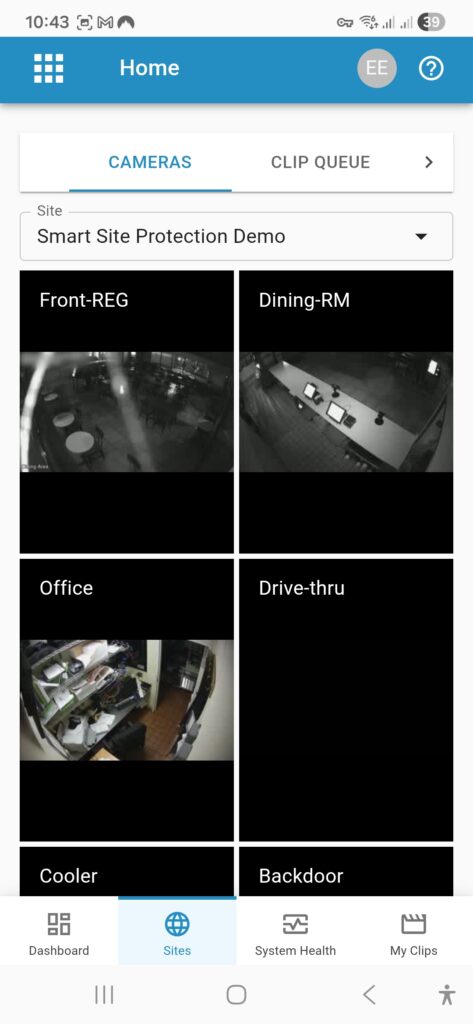
Multi-up is available for mobile, but a single camera must initially be selected to first enter video playback.
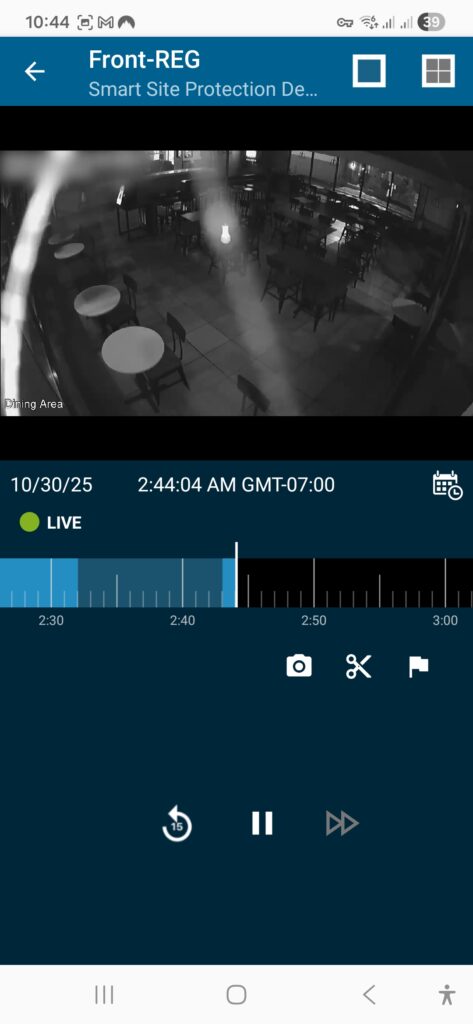
Live Video
When a video is launched on mobile, you will automatically be taken to view live video. Whenever a live video is being played, an icon will show above the timeline to confirm.

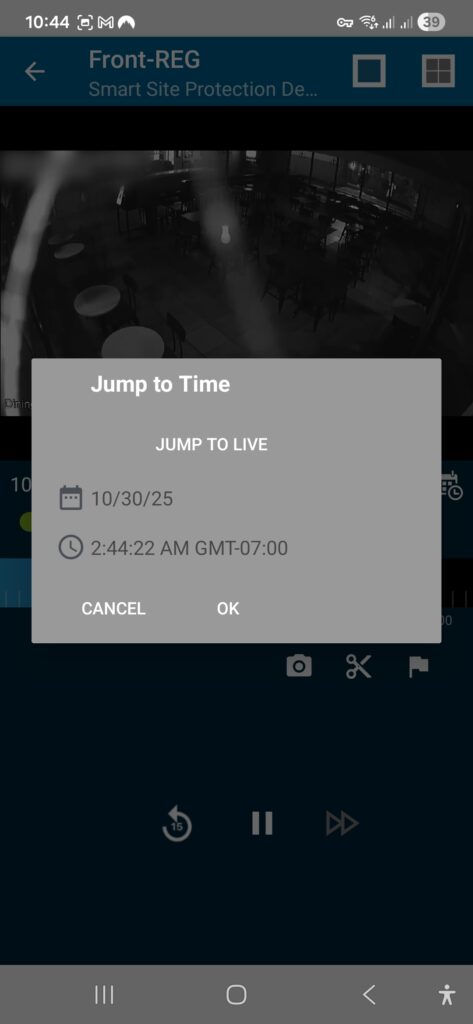
If you have been watching recorded video and want to return to a live view, follow the steps below:
1. Select the calendar icon below the video on the right side.
2. Then select ‘Jump to Live’.
Multi-up Video Playback
1. While watching a single camera, select the grid icon in the top right corner.
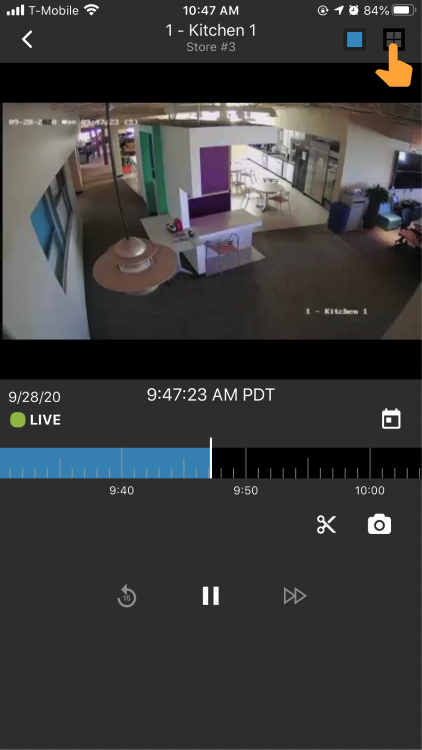
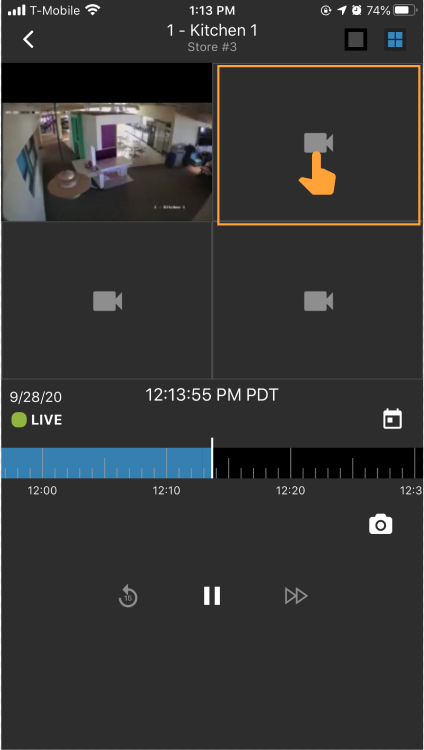
2. Playback will switch to 4-up with the selected camera in the top left corner, select the camera icon in an empty cell to choose a camera.
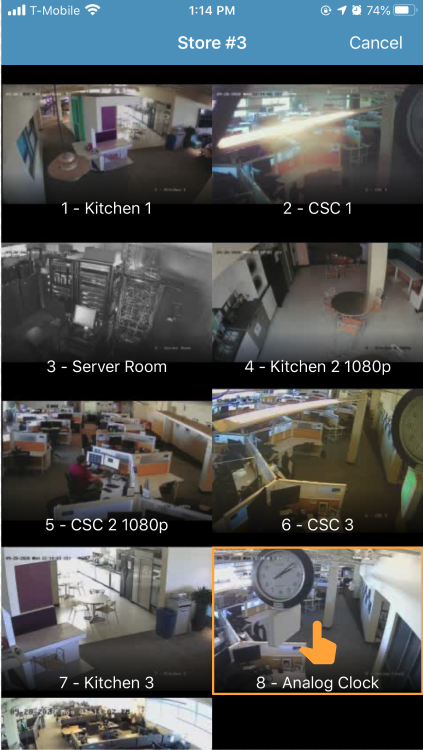
3. A list of available cameras will display, select the desired camera from this list.
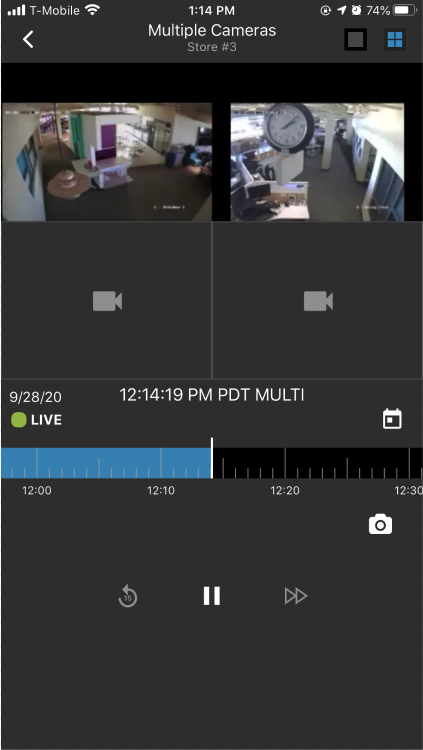
4. Repeat as desired on the remaining camera cells.
Timeline Control
Control the precision that you scrub the timeline by placing two fingers on the timeline and either pinching together to zoom the timeline out, or spreading apart to zoom the timeline in.